How to run the blooming test
- Turn local dimming on and the lights off. Blooming only happens with local dimming active, and a dark room is where you’ll notice it in films. Use the picture mode you actually watch in.
- Go fullscreen. Click the test or press F. Any other bright element on screen — a browser tab bar, the controls — changes how the zones behave, so the controls hide after two seconds.
- Watch each scene. ← → or 1–5 switch scenes (tap the screen on a phone or tablet). Sit at your normal distance and look at the black area around the bright parts rather than the bright parts themselves.
- Change size, count and speed. S, C and ↑ ↓ (or the buttons). Small objects show how far light spreads from one zone; many objects show how the algorithm copes with a busy scene; fast motion shows whether the dimming keeps up.
- Map the zones with Follow. In Follow mode, the circle follows your mouse or finger. Move it slowly across the screen and watch the glow jump from zone to zone.
- Compare settings. Repeat with local dimming on Low, Medium and High, in SDR and HDR, and pick the trade-off you like.
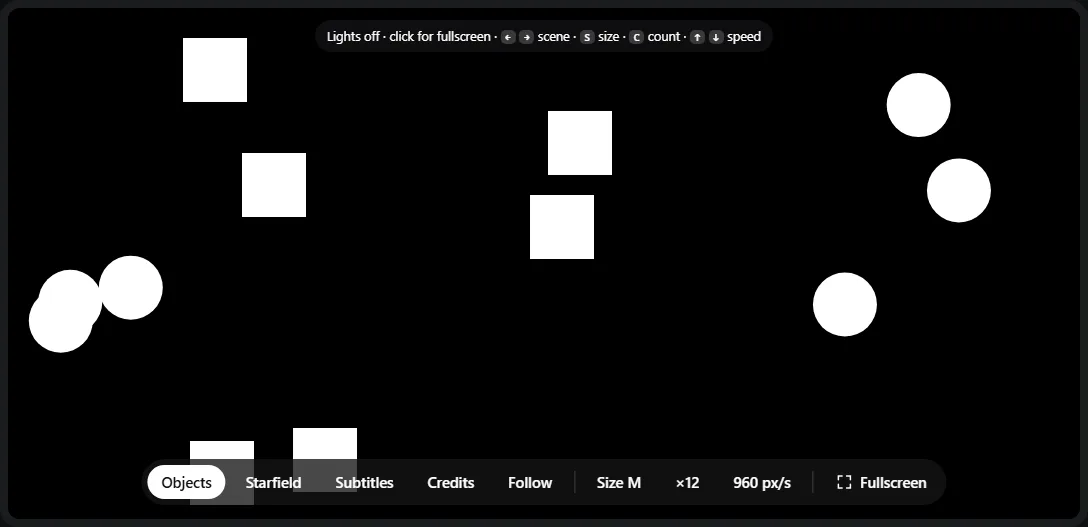
- 1Scenes: objects, starfield, subtitles, scrolling credits and a circle that follows your pointer.
- 2Object size (S), count (C) and speed in pixels per second (↑ ↓).
- 3Fullscreen — bright browser bars would change how the zones behave.
What to look for
| Scene | What blooming looks like |
|---|---|
| Objects | A gray, often blocky halo that travels with each object. With several objects, black areas between them turn gray. A halo that lags behind a fast object means the dimming is slower than the motion. |
| Starfield | A gray haze around groups of stars, or the opposite: small, dim stars disappearing because the algorithm keeps their zones dark. |
| Subtitles | A gray rectangle behind the white text that changes size as each line changes — very noticeable in dark films with letterbox bars. |
| Credits | A glowing band that moves up with the text, and black between the lines that never quite reaches black. |
| Follow | The halo snapping from one rectangle to the next as you move. On a full-array set the size of these steps is roughly the size of a zone. |
Why blooming happens
An LCD panel doesn’t produce light; it blocks light from a backlight behind it, and it can only block about 99.9% of it (that’s what a 1000:1 contrast ratio means). Local dimming splits the backlight into zones and turns each one down where the picture is dark. When a small bright object sits in a dark area, its zone has to be bright, and the LCD in front of the dark pixels in that zone can’t block all of that light — so you see a glow. Light also spreads sideways into neighboring zones.
| Backlight | Dimming zones | Blooming |
|---|---|---|
| Edge-lit, no local dimming | None — the whole screen is one level | None, but black is gray everywhere |
| Edge-lit with local dimming | A handful of strips or columns | Large bands or columns of glow |
| Full-array local dimming (FALD) | From a few dozen on budget sets to hundreds | Visible halos around bright objects |
| Mini-LED | Hundreds to a few thousand | Smaller, tighter halos; depends heavily on the algorithm |
| OLED | Every pixel | None |
Zone count isn’t everything. The algorithm decides how aggressively to dim, how fast to react, and whether to favor deep black (and risk crushing small highlights) or brightness (and risk more halo). Two TVs with similar zone counts can look very different.
Settings that change blooming
- Local dimming level. Usually Off / Low / Medium / High. Higher gives deeper black and more halo; lower gives less halo and grayer black. On Samsung and Sony TVs it’s called Local Dimming; some brands use Local Contrast or a similar name. Monitors often hide it in the on-screen menu under picture or HDR settings.
- Backlight / brightness. Less backlight means less light to spill. In a dark room you rarely need maximum.
- HDR. Highlights are far brighter in HDR, so blooming is more visible. Test both. On Windows, HDR is under Settings → System → Display → Use HDR; see the HDR test.
- Game mode. On some TVs, game mode uses a faster, simpler dimming algorithm that can bloom more or less. Compare it with your movie mode.
- Room light. A little ambient or bias light behind the screen makes halos much less noticeable to your eyes.
Laptops and tablets with mini-LED screens generally don’t offer a local dimming setting; the system manages it.
Normal blooming or a defect?
Every local-dimming LCD blooms to some degree, so blooming alone is rarely a warranty issue. These are signs of a real fault:
- A zone that stays bright on a black screen, or stays dark on a bright one.
- A rectangle that flickers or pulses on a still image.
- A clearly darker or brighter rectangular area on a uniform 20–50% gray field — check with the gray uniformity test.
Light leaking at the edges of the screen with local dimming off is a different problem; the backlight bleed test covers it. If halos bother you more than anything else, an OLED is the only display type that avoids them completely.
Frequently asked questions
What is blooming on a TV or monitor?
Blooming (or haloing) is a glow around bright objects on a dark background. It happens on LCDs with local dimming: the backlight behind a bright object has to turn up, and that light spreads into the surrounding dark area, which the LCD layer can’t fully block. The fewer and larger the dimming zones, the bigger the halo.
How do I test my TV for blooming?
Turn off the lights, make sure local dimming is on, and open this test fullscreen. Watch the moving white objects, the starfield and the subtitles on black. A gray haze or blocky glow around the bright parts is blooming. In Follow mode, move a small circle slowly across the screen — on a full-array set you can often see the individual zones switching.
Do OLED TVs have blooming?
No. Every OLED pixel produces its own light, so a white object on black lights only its own pixels and the black around it stays fully off. Very bright highlights can look slightly glowy because of reflections inside the glass or light scattering in your eye, but there is no backlight halo.
Is blooming a defect?
No — some blooming is inherent to every LCD with local dimming, and how much depends on the number of zones and the dimming algorithm. A defect is something different: a zone that stays stuck bright or dark, a rectangle that flickers, or one area that is clearly dimmer than the rest on a uniform gray field.
How do I reduce blooming?
Lower the local dimming setting (for example from High to Low or Medium), reduce the backlight brightness, and add a little light in the room. Each step trades some black depth for less halo. Turning local dimming off removes blooming entirely but makes blacks noticeably grayer.
Why is blooming worse in HDR?
HDR drives highlights much brighter than SDR, so the zones behind a bright object turn up much more, and more light spills into the dark surroundings. Many monitors also only use their most aggressive local dimming in HDR mode.
Why do small stars or dim details disappear on my mini-LED?
To keep black areas black, the dimming algorithm sometimes keeps a zone dim even though it contains a small bright point, which makes small stars, distant lights or thin text fainter than they should be. The Starfield scene shows this: compare how many stars you can see with local dimming on and off.
Last updated . Runs entirely in your browser — nothing is uploaded.