How to run the contrast test
- Set brightness first. Contrast and brightness interact. Run the brightness test first, then come back.
- Go fullscreen. Press F or click the pattern. The squares are levels 244–254 on a 255 (pure white) background; the number under each is its level.
- Find the brightest visible square. Start at 244 and move along. The difference between neighbours is tiny by design — look for the outline of each square. Tilting your head slightly or looking from a bit further away can help.
- Adjust Contrast in the monitor menu (TV: Contrast) until you can see 252–254, then pick your result under the pattern for a verdict.
- Check colorbands and steps. Press 2 for the colorbands: 7 bars of 32 steps each (levels 7, 15, 23 … 255). Every step should be distinct at both ends. Press 3 for a 0–100% gray scale in 5% steps.
What good and bad look like
| Highest square you see | Meaning | What to do |
|---|---|---|
| 253–254 | No clipping | Nothing. Your contrast setting is correct. |
| 250–252 | Fine on most screens | Optionally lower Contrast a few points and re-test; stop as soon as the top squares appear. |
| 244–249 | Highlights are clipping | Lower Contrast; turn off dynamic contrast and Vivid/Dynamic picture modes. |
| None | Heavy clipping, or an RGB range mismatch | Check the RGB range setting (below), then Contrast. |
What the contrast setting really does
On a PC monitor, Contrast multiplies the incoming signal before it reaches the panel. Above a certain point, the brightest levels are pushed past the panel’s maximum and all become the same white — this is clipping, and it removes detail from clouds, snow, skin highlights and bright UI. On most monitors the default value is already the highest unclipped setting, so the usual fix is simply to go back to the default.
On TVs, Contrast sets the white level, while Brightness sets the black level and Backlight or OLED Light sets the overall light output. Set Contrast as high as you can while still seeing the top squares, then adjust Backlight for comfort.
The contrast setting is not the same as the contrast ratio. The ratio — how much brighter white is than black — is a property of the panel. Turning Contrast up doesn’t improve it; it just clips highlights.
Reading the colorbands
The colorbands show gray, red, green, blue, cyan, magenta and yellow in 32 steps each. They reveal problems the white squares can’t.
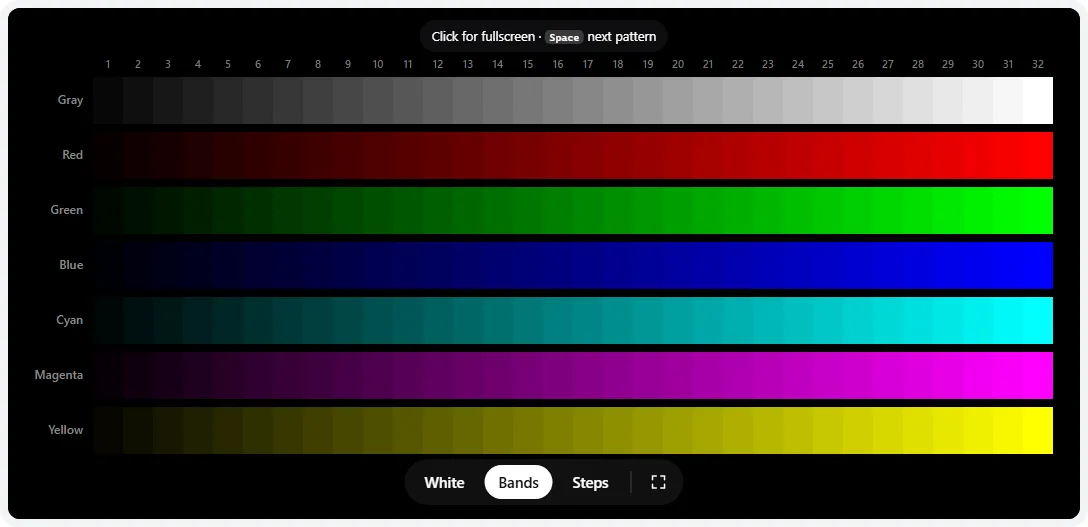
What to look for:
- The last steps of one color merge (for example red steps 29–32 look identical): that channel clips. The usual cause is a red, green or blue gain raised above its default in a User or Custom color temperature. Lower the highest gain instead of raising the others.
- All colors merge at the top: Contrast too high, or a Vivid, Dynamic or HDR-simulation mode.
- The first steps merge into black: crushed shadows — see the brightness test.
- Steps look uneven or some have a color tint: gamma or grayscale tracking errors. Check the gamma test and the gray neutrality ramp in the color accuracy test.
- Visible stripes inside a step are not a contrast problem — that is banding or dithering, covered by the color banding test.
Fixes that work
- Reset the picture mode. Choose Standard, sRGB or Custom/User on monitors, Filmmaker, Movie or Cinema on TVs. Vivid and Dynamic modes trade highlight detail for punch.
- Turn off dynamic contrast (DCR, Dynamic Contrast, Contrast Enhancer, Adaptive Contrast). It changes the picture depending on the content, which makes testing unreliable and often clips highlights.
- Check the RGB range. If no squares are visible and the brightness test shows only 20 and up, the PC sends full range but the display expects limited range. Set the graphics driver to Full (NVIDIA: Change resolution → Output dynamic range; AMD: Pixel Format → Full RGB; Intel: Quantization Range) and the display’s HDMI black level / RGB range to Full, or both to Auto.
- Driver color settings. NVIDIA Control Panel → Adjust desktop color settings and AMD Software → Custom Color have their own contrast sliders. Leave them at default so you only adjust in one place.
- Phones and laptops have no contrast control. If highlights clip, try the Natural/Standard screen mode instead of Vivid, and turn off HDR video boosts or “extra brightness” modes while testing.
Contrast ratio by panel type
Typical measured native contrast — what you actually get, before any dynamic tricks:
| Panel | Typical native contrast | What it means in a dark room |
|---|---|---|
| IPS LCD | ~1000:1 – 1500:1 | Black looks dark gray; glow in corners from an angle |
| TN LCD | ~1000:1 | Similar to IPS, but changes strongly with viewing angle |
| VA LCD | ~2500:1 – 6000:1 | Noticeably deeper blacks than IPS |
| Mini-LED with local dimming | Far higher in mixed scenes | Deep blacks, but halos around bright objects (blooming) |
| OLED | Effectively infinite (pixels switch off) | True black; in a bright room, reflections set the limit |
To measure your own ratio you need a colorimeter: measure a full-screen white and a full-screen black (our white screen and black screen work) at the same settings and divide the two luminance readings.
Frequently asked questions
How do I set contrast on my monitor?
Open the white saturation pattern in fullscreen. Lower the monitor’s Contrast setting until you can see all the squares up to 252–254 against the white background, then stop — going lower only makes white dimmer. On many monitors the factory default (often 50, 70 or 75) is already the highest setting that doesn’t clip.
How many white squares should I be able to see?
Ideally all of them, up to 254, though 252 or 253 is very good on most screens. Squares fading out from around 250 means highlights are being clipped. If none are visible at all, the PC and display probably disagree about the RGB range (full vs limited).
Can this test measure my contrast ratio?
No. Contrast ratio is the brightness of white divided by the brightness of black, and a browser has no way to measure light. You need a colorimeter or light meter: measure a full white screen and a full black screen at the same settings and divide. This page checks the contrast setting, which is about not losing detail in highlights.
What is a good contrast ratio for a monitor?
IPS monitors typically measure about 1000:1 to 1500:1, VA monitors about 2500:1 to 6000:1, and OLED and well-implemented mini-LED much higher because they can switch zones or pixels off. Advertised “dynamic contrast” figures of 1,000,000:1 compare different scenes, not black and white on screen at the same time.
What do the colorbands tell me?
Each of the seven bars has 32 steps from dark to full. All steps should be visibly different, at both ends. If the last few steps of one color merge, that channel is clipping — often caused by raising a red, green or blue gain in the color temperature settings. If the first steps merge into black, shadows are crushed.
Should contrast be at 100?
Rarely. On most PC monitors, values above the default boost the signal and clip highlights, which this test shows immediately. On TVs, Contrast sets the white level; the right value is the highest one that still shows the top squares in the white pattern.
Last updated . Runs entirely in your browser — nothing is uploaded.