How to run the banding test
- Go fullscreen by clicking the gradient or pressing F. Banding is easiest to see on a large, uninterrupted gradient in a dim room.
- Start with the gray ramps. The top ramp runs from black to white, the bottom one from white to black. Both should look like a smooth blend. Look for stripes, blotches, or a tint (green, pink or blue) in parts of the gray.
- Step through the gradients with Space or → (1–6 jump straight to one): red, green and blue ramps; close-ups of the darkest 15% and brightest 15%; a radial gradient; and two sky gradients, which is where banding shows up in real photos and video.
- Change the step count (S). Smooth is the browser’s own gradient; 256 is exactly 8 bits per channel; 128 down to 16 show progressively coarser banding so you know what you are looking for. Dither (D) shows how a fine pattern hides the steps.
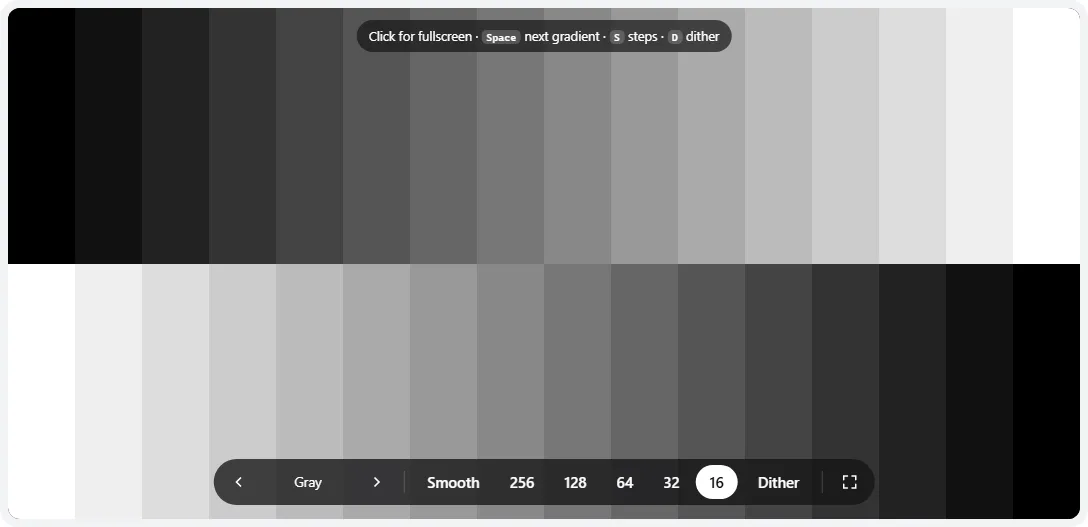
- 1The step count: Smooth (the browser’s gradient), 256 (exact 8-bit) and coarser levels for comparison. Key S cycles through them.
- 2Dither mixes neighboring shades in a fine pattern — turn it on at 16 or 32 steps to watch the bands disappear.
- 3Each band is one level. The bar under the test tells you how many pixels wide each band is on your screen.
What you should see
| What you see at Smooth / 256 | What it means |
|---|---|
| A smooth blend, or very faint steps only in the darkest part | Normal. Most screens show slight steps near black; your eyes are most sensitive there. |
| Fine, evenly spaced lines across the whole ramp, visible up close | Normal for an 8-bit signal on a large or high-contrast screen. Each line is one of the 256 levels. |
| Wide bands, or groups of shades merged into flat blocks | Processing is throwing levels away: dynamic contrast, a non-default gamma or brightness curve, an ICC profile correction, or a limited/full range mismatch. |
| Green, pink or purple tints in the gray ramp | The three channels are not tracking each other — common with aggressive white-balance or color-temperature adjustments, and on some VA and OLED panels near black. |
| Blotchy, uneven patches that stay in place on every gradient | That is a uniformity issue rather than banding. Check with the gray uniformity test. |
| A shimmer or fine crawling pattern in dark gradients | Temporal dithering (FRC) from the panel or graphics driver. It is how 6-bit panels, and many 8-bit ones, fake extra shades. |
The shadow and highlight close-ups
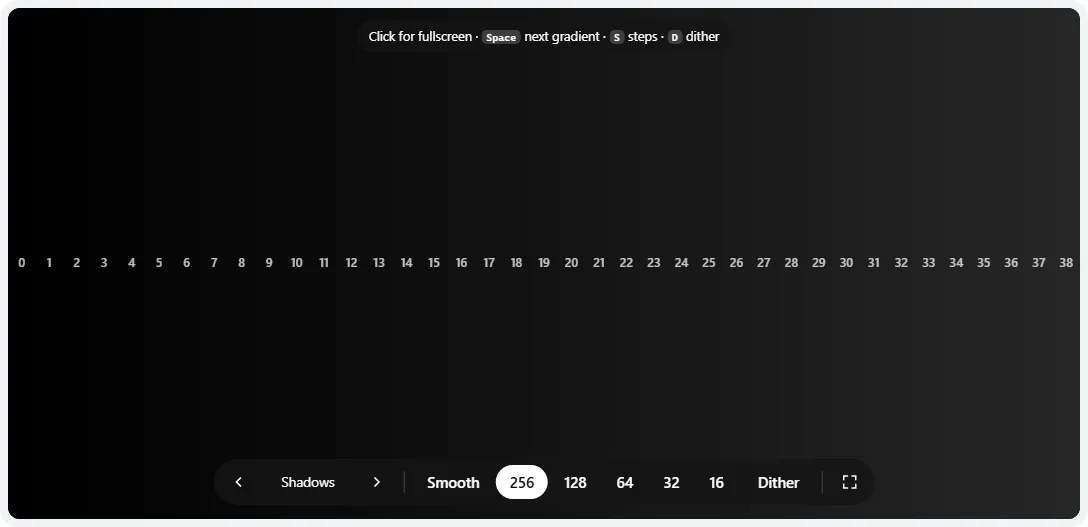
These stretch just the darkest 15% (levels 0–38) or brightest 15% (levels 217–255) across the full width, with each level numbered. In 8-bit there are only 39 levels in each range, so you will see steps here — that is the point. Each step should be visible and roughly evenly spaced. If the first several steps merge into black, your brightness or black level is too low (try the brightness test); if the last steps merge into white, the contrast is too high (try the contrast test).
Bit depth, dithering and why browsers show 8-bit
Banding comes down to how many distinct shades each channel can show:
| Bit depth | Shades per channel | Where you find it |
|---|---|---|
| 6-bit | 64 | Budget TN and some older IPS laptop panels. Almost always paired with FRC to fake 8-bit. |
| 6-bit + FRC | ~256 (simulated) | Many budget and office monitors and laptops, often sold as “16.7 million colors”. |
| 8-bit | 256 | Most monitors and phones; the standard for SDR content and the web. |
| 8-bit + FRC | ~1,024 (simulated) | Many monitors sold as “10-bit” or “1.07 billion colors”. |
| 10-bit | 1,024 | Professional monitors, many TVs and OLEDs. Needed to avoid banding in HDR. |
FRC (frame rate control) is temporal dithering: the panel flicks a pixel between two neighboring shades fast enough that you see the average. Done well, 8-bit+FRC is very hard to tell from true 10-bit. Dithering in software does the same thing spatially, with a fine pattern. Some graphics drivers dither the output by default (common on AMD GPUs and Macs), which is why the same monitor can show more or less banding on different computers.
In a web browser, ordinary (SDR) pages and canvases are drawn with 8 bits per channel, so the 256 setting here is the best a page can send in SDR — whatever your panel’s bit depth. A 10-bit panel still helps: it can apply its own color and gamma processing without losing steps. Browsers can use more precision for HDR video and images; see the HDR test.
No web page can detect your panel’s bit depth. The “bits per channel” figure under the test is what the browser reports to pages — usually 8 even on 10-bit panels, and sometimes 10 when the operating system runs a 10-bit or HDR desktop. The real panel spec is on the manufacturer’s data sheet.
How to reduce banding
On a monitor or laptop
- Turn off image “enhancers”: dynamic contrast, black stabilizer / black equalizer, dynamic color, and sharpness above its neutral point.
- Reset gamma and color: use the default gamma setting (usually 2.2) and an sRGB or standard mode. Big changes to the RGB gain sliders, gamma presets or brightness curves remove levels.
- Check the signal: RGB, full range, 4:4:4. If your cable and port allow it, set 10 bpc output — NVIDIA Control Panel → Change resolution → Output color depth, or AMD Software → Display → Color Depth.
- ICC profiles and calibration: a strong correction loaded into the graphics card’s gamma table (from a calibration tool or a downloaded profile) is a common source of banding on 8-bit output. Compare with the profile removed.
- Windows HDR: if banding appeared when you turned on HDR, set the connection to 10 bpc and check the SDR content brightness slider; very low values compress SDR into fewer steps.
On a TV
- Use Movie, Cinema, Filmmaker or Calibrated mode and turn off dynamic contrast, noise reduction and “MPEG/digital clean view” style processing.
- Look for a gradation smoothing setting (Sony and LG call it Smooth Gradation; other brands use different names): low settings can smooth out banding in compressed video, at the cost of fine detail.
- Banding in streaming apps is usually in the stream itself. Compare with this test in the TV’s browser: if the test is smooth, the TV is fine.
Is banding a reason to return a display?
Usually not on its own: some banding near black is normal at every price. Consider a return when, with every enhancer off and default settings, the gray ramp shows wide, uneven bands or strong color tints across the mid-tones, the shadow close-up merges many levels into one, or the problem looks the same on another computer and cable. If you just bought an OLED and see blotchy, dark-gray bands rather than gradient steps, that is near-black uniformity — run the OLED test.
Frequently asked questions
What is color banding?
Color banding is when a smooth gradient — a clear sky, a dark wall, a fade to black — shows visible stripes instead of a seamless blend. It happens when there aren’t enough distinct shades to make each step invisible, or when processing throws some of them away.
Is some banding normal?
Yes. Faint, very fine steps in the darkest part of a gradient are normal on most screens, especially on 8-bit and 6-bit+FRC panels and in a browser, which usually outputs 8 bits per channel. Wide, obvious bands across the mid-tones, color tints in a gray ramp, or a few shades merging into one block are not normal and usually point to a setting.
Can this test tell whether my monitor is 8-bit or 10-bit?
No — and no web page can. The browser decides how many bits it sends, the graphics driver and the monitor may dither, and a 6-bit+FRC panel can look identical to a true 8-bit one. What the test shows is whether the gradients you actually see are smooth. Check the panel’s bit depth on the manufacturer’s spec sheet or a detailed review instead.
How do I fix color banding?
- Turn off dynamic contrast, “black stabilizer”, sharpness boosts and picture enhancers.
- Use the monitor’s default gamma and an sRGB or standard mode, and remove any extreme ICC profile or gamma adjustment in the graphics driver.
- Make sure the output is full-range RGB 4:4:4 and, if your connection allows it, 10 bpc in the NVIDIA or AMD control panel.
- For video, banding is often in the file itself — try a higher-bitrate source.
Why does banding get worse when I turn on HDR?
In HDR mode on Windows, ordinary SDR content is mapped into a much larger brightness range, so each of its 256 steps covers a bigger jump in brightness; an 8-bit connection or the SDR brightness slider set very low makes the steps easier to see. Use a 10-bit connection where possible and keep HDR off for SDR work if the banding bothers you.
Why are there bands in YouTube or Netflix videos but not here?
Streaming video is heavily compressed, and compression removes the tiny differences that make a gradient smooth, especially in dark scenes. If this test looks smooth but a video doesn’t, the banding is in the video, not your screen.
What does dithering do?
Dithering mixes two neighboring shades in a fine pattern (or alternates them over time, which is what FRC does) so your eye sees an in-between shade. Turn on Dither with a low step count to see how well it hides banding — that is exactly what a 6-bit+FRC panel or a graphics driver does behind the scenes.
Last updated . Runs entirely in your browser — nothing is uploaded.