How to run the touch screen test
- Take off the case and wipe the screen. Water, grease and a case lip pressing on the glass all cause false results. Keep the screen protector on for the first run — if you find a problem, test again without it.
- Go fullscreen. Tap Fullscreen (the corner-arrows button) or press F. The edges of the panel are where most touch problems hide, and the small preview does not reach them. On iPhone the test fills the browser window instead; turn the phone sideways and back or add the page to your home screen for more room.
- Points: put fingers down one at a time. Each one gets a numbered marker with crosshairs and its live readings. Check the markers sit under your fingertips and that the count goes up with every finger.
- Grid: slide one finger slowly over every cell until the whole grid is blue. Cells that stay dark no matter how often you rub over them are dead zones. The controls hide while you paint so you can reach the cells behind them.
- Draw: draw slow, straight lines across the whole screen — horizontal, vertical and diagonal. Orange rings mark breaks (the screen lost contact for a moment) and red rings mark jumps (a sample landed far from your finger).
- Edges: run a finger around the very edge of the screen, including the corners, until the whole border is blue.
- Ghost: unplug the charger, press Start, and put the device down without touching it for 30 seconds. Every touch it registers on its own is marked in red.
What each mode finds
| Mode | Finds | Good result |
|---|---|---|
| Points | Missing or merged fingers, offset touches, touch limit, stylus pressure and tilt | One marker per finger, centered under it, count matches fingers down |
| Grid | Dead zones — areas that never register | 100% coverage with an even, unbroken path |
| Draw | Intermittent contact (breaks), position glitches (jumps), wobbly lines from noise | Smooth lines, 0 breaks, 0 jumps |
| Edges | Dead or insensitive borders, often caused by protectors and cases | Every border segment lights up |
| Ghost | Phantom touches with nobody touching the screen | 0 touches in 30 seconds |
Reading the live values
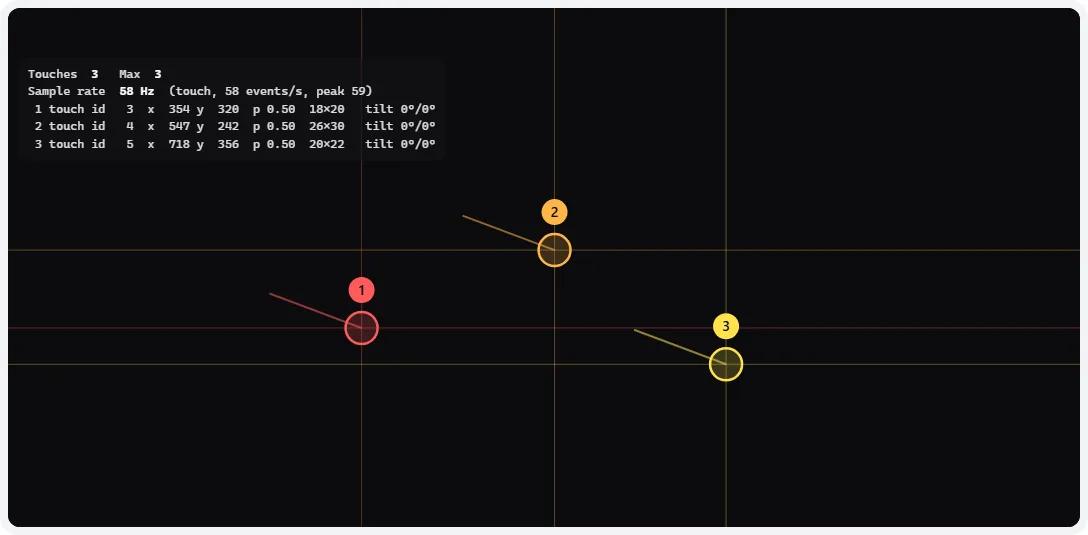
- 1Live readout: touches now and the maximum so far, the sample rate, and one line per contact.
- 2Each finger gets a numbered marker above it, so your fingertip doesn’t hide it.
- 3The ring is drawn at the contact size the screen reports.
- 4Crosshairs span the whole screen, which makes small offsets easy to spot against the edges.
- x / y — position in CSS pixels from the top-left of the test area. Multiply by the device pixel ratio for physical pixels.
- p (pressure) — 0 to 1. Fingers almost always read 0.5, because most touchscreens can’t sense force and the standard says to report 0.5 when pressed. A stylus shows real values.
- Size — the contact area the screen reports (width × height in CSS pixels). Android usually reports it; some browsers report a fixed size such as 1 × 1. A large flat touch (the side of your thumb) should give a bigger size than a fingertip.
- Tilt — for a stylus, how far it leans along x and y in degrees. Fingers read 0.
- Sample rate — how many position samples per second the browser received while you moved. Browsers fire touch events once per display frame, but many keep the in-between samples (coalesced events); this test counts those. Expect roughly 60–240 Hz on phones and tablets. If it matches your refresh rate exactly, your browser is probably only exposing one sample per frame. A mouse shows its polling rate here.
Dead zone, ghost touch or something else?
| Symptom | Most likely cause | Try |
|---|---|---|
| A strip or patch never registers | Damaged digitizer or flex cable; bubble or debris under a protector | Remove the protector and test again; if still dead, repair |
| Edges unresponsive, middle fine | Thick protector or case lip, palm-rejection settings, edge-panel features | Remove case/protector; turn off edge features; test in fullscreen |
| Random touches while charging only | Electrical noise from the charger or cable | Use the original or a certified charger; test on battery |
| Random touches all the time | Cracked or poorly fitted replacement screen, moisture, swollen battery pressing the panel | Dry the device, restart; if it persists, get the screen checked |
| Lines break up when drawing slowly | Weak contact detection: dry fingertips, gloves, thick protector, low “touch sensitivity” setting | Turn on the phone’s touch sensitivity / screen-protector mode |
| Touches land a few millimeters off | Replacement screen, calibration (Windows), or you are viewing at an angle | Windows: recalibrate; phones: no calibration — repair |
| Two fingers close together show as one | Normal: controllers merge contacts closer than roughly a fingertip apart | Spread your fingers out |
Fixes to try before a repair
- Restart the device. A crashed touch driver or a stuck app overlay can make the whole screen or part of it ignore touches.
- Remove the case and screen protector, then test again. Protectors cause more “dead zones” than failing screens.
- Turn on the screen-protector setting if you keep a protector: on Samsung Galaxy phones it is Settings → Display → Touch sensitivity; on Google Pixel it is Settings → Display → Increase touch sensitivity (names vary by version).
- Check accessibility options. On iPhone, Settings → Accessibility → Touch → Touch Accommodations changes how touches are interpreted — make sure it is off unless you need it. On Android, look for “Touch and hold delay” and “Ignore repeated touches”.
- Rule out apps. On Android, restart into Safe mode (hold the power-off option) — if a problem disappears, a third-party app is to blame.
- Windows touch PCs: recalibrate (Control Panel → Tablet PC Settings → Calibrate), and update or reinstall the “HID-compliant touch screen” device in Device Manager.
If a dead zone or ghost touching started after a drop, water exposure or a screen repair, stop there: it is a hardware fault. Ghost touching on a phone can also be a sign of a swelling battery pressing on the panel — if the screen is lifting at an edge, stop charging it and get it serviced.
Buying a used phone or tablet?
Run Grid and Edges in fullscreen with the seller’s case and protector removed, then the 30-second Ghost watch while the device charges from the seller’s charger. Combine it with a dead pixel test and a burn-in check, or use the guided phone screen test, which walks through all of these in order and gives you a pass/fail summary.
Limits of a browser touch test
A web page sees what the operating system passes on, after palm rejection and gesture handling. It can’t read raw capacitance, so a weak area that still registers will look fine here. System gestures — swiping in from the edges on iPhone and Android, three-finger gestures on iPad — are handled by the system first and may never reach the page; that is normal, not a dead zone. Report touch rate and contact size are only as accurate as the browser exposes.
Frequently asked questions
How do I test my touch screen?
Open this page on the device and touch the test area — it responds straight away. Use Points to check that every finger is tracked, Grid to paint every cell and find dead zones, Draw to look for broken lines, Edges to trace the border, and Ghost to watch for phantom touches while you keep your hands off. Go fullscreen first so the test covers the whole panel.
How many touch points does my screen support?
Put your fingers down one at a time in Points mode and watch the “Max” counter. The bar under the test also shows how many points your device reports it supports (navigator.maxTouchPoints). Most Android phones and Windows touch laptops handle 10; iPhones in Safari typically track 5 at once. If the count stops short of what you put down, that is a hardware or driver limit, not a fault.
What causes ghost touches?
The most common causes are a cheap or uneven charger (electrical noise on the ground), water or sweat on the glass, a screen protector with trapped air or edge lift, a cracked or replaced digitizer, and the case pressing on the edge of the screen. Unplug the charger, dry and clean the screen, remove the case and protector, restart, then run the 30-second watch again.
Why do some parts of my screen not respond to touch?
A strip or patch that never registers in Grid mode is a dead zone. Rule out the easy causes first — a screen protector with a bubble or dust under it, a case lip, or a software overlay that eats touches near the edge. If the zone stays dead after removing the protector and restarting, the digitizer or its cable is damaged; that usually means a screen replacement.
Why does pressure always show 0.5?
Most finger touchscreens do not measure force. Under the Pointer Events standard, browsers report a pressure of 0.5 for any pressed touch when the hardware has no pressure sensor. Styluses such as Apple Pencil, Surface Pen and S Pen do report real pressure (0–1) and tilt.
What is touch sampling rate, and can a browser measure it?
It is how many times per second the touch controller scans for your finger — commonly 120–240 Hz on phones and higher on gaming phones. Browsers usually deliver touch events once per display frame but keep the in-between samples, which this test reads with getCoalescedEvents(). Move a finger steadily to get a reading. Some browsers (and Safari on older iOS) only expose one sample per frame, so the result can be capped at your refresh rate.
Can I calibrate my touch screen?
Phones and iPads have no user calibration — accuracy is set at the factory, so a consistent offset points to a hardware problem or a poorly fitted replacement screen. Windows touch PCs do have one: Control Panel → Tablet PC Settings → Calibrate (search for “Calibrate the screen for pen or touch input”). Reset it if touches land away from your finger.
Does this touch test work with a stylus or mouse?
Yes. It uses Pointer Events, so touch, pen and mouse all work. A pen shows its real pressure and tilt in Points mode, and moving a mouse shows its polling rate as the sample rate.
Last updated . Runs entirely in your browser — nothing is uploaded.