What this test can and can’t measure
Input lag is the time from pressing a button to seeing the result on screen. It adds up across the whole chain below. A web page only knows when it handed a frame to the graphics system — not when your monitor lit it up — so no website can measure display lag by itself. You need a camera, and this page gives it something precise to look at.
| Mode | Method | Measures | You need |
|---|---|---|---|
| Stopwatch | Photograph two screens in duplicate mode | The display’s lag compared with a reference screen | A second display, a phone or camera |
| Flash | Film a click and the screen in slow motion | The whole chain, click to light | A phone with 240 fps slow motion |
| Latency | Software timing in the browser | Input device + computer + browser only | Nothing |
Method 1: two-screen camera test (stopwatch)
This is the classic way to measure display lag at home. Both screens show the same frame from the same computer, so any difference in the time they show is the difference in their lag.
- Connect both displays to one computer: the one you want to test and a reference with known low lag (a CRT, or a gaming monitor whose lag has been measured in reviews). Use the same refresh rate on both.
- Mirror the screens. Windows: press Win+P → Duplicate. macOS: System Settings → Displays → Use as → Mirror for Built-in Display (or the display menu’s mirror option).
- Open the Stopwatch and go fullscreen (F). Line the screens up side by side so the timers are at the same height: displays draw from top to bottom, so a timer lower on one screen is drawn later.
- Photograph both screens at once with the fastest shutter you can: 1/1000 s is ideal, 1/250 s is the minimum. In a phone’s Pro or manual mode, set the shutter and raise ISO to compensate. Burst mode helps.
- Read the photos. Subtract the test display’s time from the reference display’s time. Ignore photos where a timer is unreadable. Average at least 10 readings.
- Swap the cables (or the ports on the graphics card) and repeat. Some graphics cards send the two outputs slightly out of step; averaging both ways cancels that out.
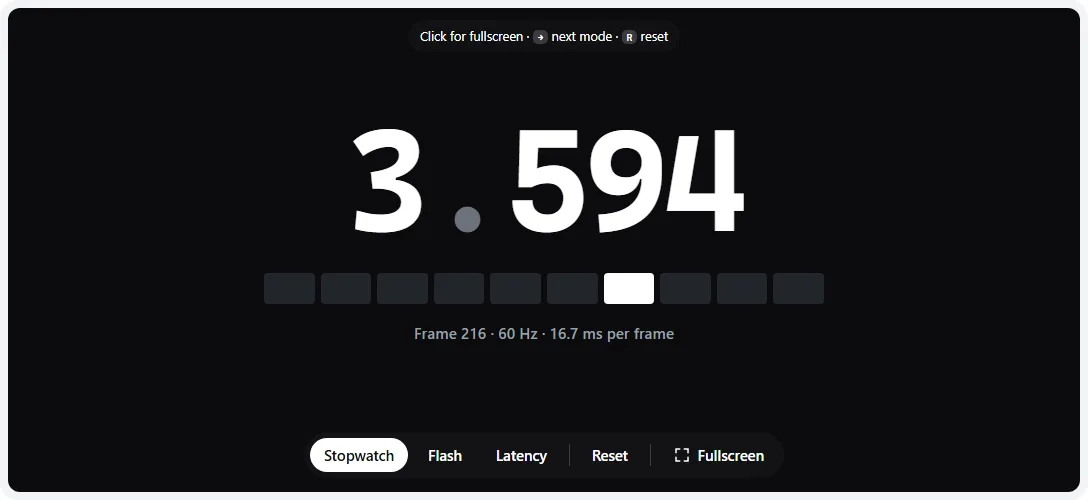
- 1Seconds and milliseconds since the page started. It updates once per refresh, so it moves in steps of one frame time (16.7 ms at 60 Hz).
- 2Frame strip: one cell lights per refresh. If a photo catches a screen mid-change, two cells are half-lit — use the strip to tell how many frames apart the screens are.
- 3Frame counter and the refresh rate the browser is running at.
Reading the strip: the timer only changes once per refresh, so a single photo is accurate to about one frame. If the test screen shows the cell two places behind the reference at 60 Hz, it is about 2 × 16.7 = 33 ms behind. Averaging many photos taken at random moments gets you well below one frame of precision.
Common mistakes: mirroring at a resolution one screen has to scale (scaling can add lag — use each screen’s native resolution if possible, or the same resolution on both), a slow shutter (both timers blur into unreadable numbers), and comparing against a reference with unknown lag (the result is only ever relative to the reference).
Method 2: slow-motion click-to-photon video (flash)
This measures the whole chain — mouse, computer, browser and display — with nothing but a phone. It is the best way to compare two displays on the same computer, or one display in different modes.
- Switch to Flash and go fullscreen. The screen turns white the moment you press and stays white while you hold.
- Set your phone to slow motion at 240 fps (iPhone: Camera → Slo-Mo, 240 fps in Settings → Camera → Record Slo-mo; most Android phones have a 240 fps or higher slow-motion mode).
- Film the mouse button or key and the screen in the same shot. Press firmly about 10 times, a second apart.
- Step through the video frame by frame. Count frames from the moment the button bottoms out to the first frame where the screen gets brighter. Lag in ms = frames × 1000 ÷ video fps (at 240 fps, each frame is 4.2 ms).
- Average all the presses. Repeat on the other display or setting; the difference between the averages is the difference in display lag.
Method 3: software latency (no camera)
The Latency mode times each click, tap or key press from the moment the operating system stamped the input event to the next frame that shows the response. It covers your input device’s delivery, the operating system and the browser — not the display. Add your display’s lag (from method 1 or reviews) to estimate the total.
- Typical results on a desktop are about one to two refresh intervals: roughly 17–35 ms at 60 Hz, 7–15 ms at 144 Hz.
- Higher refresh rates lower it, because the next frame comes sooner.
- Use it to compare mice and keyboards (wired vs Bluetooth), browsers, or power modes on the same machine.
How it’s calculated: event timestamp → the second animation frame after the event, which is when the frame containing the response is being displayed. Browsers coarsen timers slightly for privacy, so readings are rounded to about 0.1 ms.
Typical display input lag
| Display | Typical lag | Notes |
|---|---|---|
| Gaming monitor at max refresh rate | Under ~5 ms | Lowest at the highest refresh rate |
| Office monitor at 60 Hz | ~5–15 ms | Fine for everyday use |
| TV in Game mode | ~10–20 ms at 60 Hz | Lower at 120 Hz on TVs that support it |
| TV outside Game mode | Often 40–100+ ms | Motion smoothing and noise reduction add the most |
| Projector | Varies widely | Many have a low-latency or game mode |
Ranges are typical of published reviews, not guarantees. Reviews usually quote lag measured at the middle of the screen, which includes about half a frame of scanout.
How to reduce input lag
- TVs: enable Game mode for the input you use (LG: Game Optimizer or the Game picture mode; Samsung: Settings → Connection → Game Mode Settings; Sony: the Game picture mode). Turn on ALLM / Auto Low Latency Mode where available so consoles switch it automatically.
- Monitors: run the highest refresh rate (verify it with the refresh rate test), turn off dynamic contrast and any “super resolution” or sharpness processing, and use the native resolution.
- PC: use G-Sync/FreeSync with a frame-rate cap a few fps below the refresh rate instead of plain VSync; use NVIDIA Reflex or AMD Anti-Lag in games that support them; prefer fullscreen over windowed in older games.
- Input devices: wired or a dedicated 2.4 GHz receiver rather than Bluetooth; a higher mouse polling rate helps slightly.
Input lag is separate from motion clarity. If moving objects look smeared rather than late, check the ghosting test and response time test.
When it’s a problem with the display
High lag is almost always a setting, not a fault: a TV out of Game mode, a monitor below its maximum refresh rate, or processing like motion smoothing left on. If a monitor still measures far above what reviews of the same model report after you’ve checked those, compare against a second computer before returning it — the difference might be in the PC or the cable path (docks, switches and capture-card passthrough can all add delay).
Flash mode turns the whole screen white each time you press. It never flashes on its own, but avoid rapid repeated presses if you are sensitive to flashing light.
Frequently asked questions
Can I test my monitor’s input lag online?
Not on its own. A web page only knows when it drew a frame, not when your monitor turned it into light, so no website can isolate display lag. What works is a camera: either photograph this page’s millisecond timer on your monitor and a reference screen at the same time, or film a click and the screen’s response in slow motion. This page provides both, plus a measurement of the computer side of the delay.
What is a good input lag for gaming?
For the display itself, under about 10 ms is excellent and hard to notice, 10–20 ms is fine for most games, and above about 40 ms starts to feel sluggish in fast games and rhythm games. Gaming monitors are usually in the single digits at their maximum refresh rate. TVs need Game mode to get near 10–20 ms.
How do I reduce input lag on my TV?
Turn on Game mode (or the Game picture mode) for the input your console or PC uses, and enable ALLM (Auto Low Latency Mode) if your TV and console support it so it switches automatically. Game mode turns off motion smoothing, noise reduction and other processing that delays the picture. On Samsung TVs, setting the input’s icon to “PC” also lowers lag for computers.
Is input lag the same as response time?
No. Input lag is the delay before the display starts showing a new frame. Response time is how long each pixel then takes to change color. A screen can have low input lag but slow pixels (trails behind moving objects, see the response time test) or the reverse.
Does a higher refresh rate reduce input lag?
Yes. At a higher refresh rate each frame is scanned out faster and new frames arrive sooner: a full frame takes 16.7 ms at 60 Hz but 4.2 ms at 240 Hz. Check that your display is really running at its top rate with the refresh rate test.
Why does the software latency number vary so much between clicks?
Your click can land anywhere within a frame, so the wait for the next frame varies by up to one refresh interval. Mouse polling, browser scheduling and other apps add more variation. Look at the average and the best value after 20 or more clicks rather than any single reading.
Does Bluetooth or a wireless mouse add input lag?
Bluetooth mice and keyboards usually add several milliseconds and can vary more than wired ones. Gaming wireless mice with their own USB receiver are generally comparable to wired. This page’s latency mode and the slow-motion method include the input device, so you can compare them.
Last updated . Runs entirely in your browser — nothing is uploaded.