How to run the color test
- Set up first. Use the screen at the brightness you normally use, turn off Night Light, Night Shift, True Tone or any “eye care” mode, and set the browser zoom to 100%.
- Go fullscreen. Click the pattern or press F. Surrounding page colors change how you see color, so judge in fullscreen.
- Step through the patterns. Space or → moves to the next pattern, ← goes back, and 1–6 jump to bars, fields, ramps, spectrum, skin tones and color distances. On a phone or tablet, tap to advance.
- Read the hint under the test. It tells you what a good result looks like for the pattern on screen.
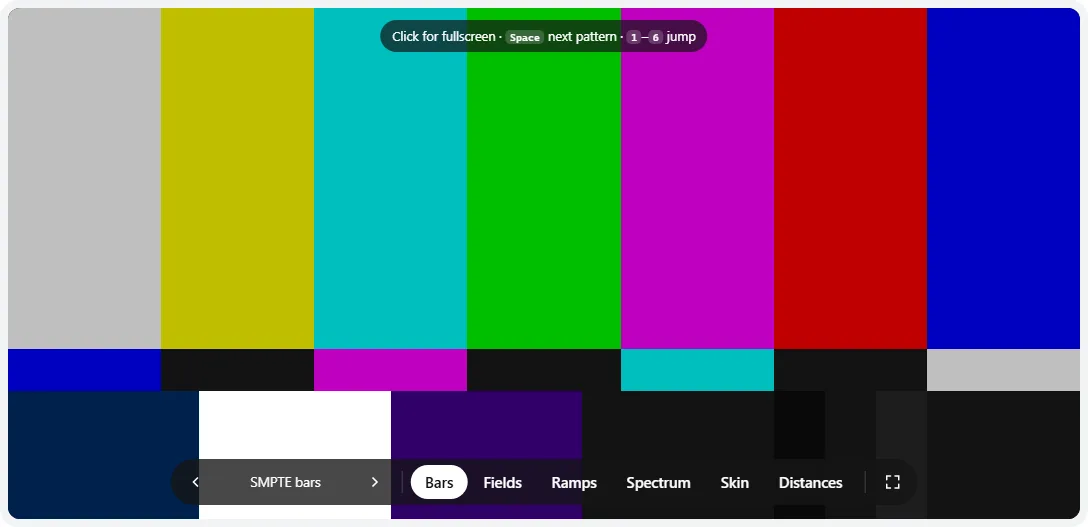
- 1Previous / next pattern and the name of the one on screen — or ← →, Space, or a click on the pattern in fullscreen.
- 2Jump straight to a pattern family (keys 1–6).
- 3Fullscreen. Always do the final check in fullscreen.
- 4PLUGE: three near-black strips (9, 19, 29). On a PC monitor the left one should look slightly darker and the right one slightly lighter than the strip around them.
What each pattern checks
| Pattern | Good result | Signs of a problem |
|---|---|---|
| SMPTE / EBU bars | Seven or eight clean, distinct bars with similar saturation; gray and white look neutral. | A bar that looks dull, tinted or missing; colors bleeding into neighbors; a gray bar with a color cast. |
| Fields (R, G, B, C, M, Y, W) | Each field is a single, even color edge to edge. White has no obvious blue, yellow, green or pink tint. | Patches or a gradient of tint across the screen; a corner that looks a different shade; white that is clearly not neutral. |
| Channel ramps | Each row runs smoothly from black, through the full color in the middle, to white. | A long flat stretch near the middle (clipped, oversaturated color), visible steps (banding) or a ramp that turns the wrong hue. |
| Spectrum | A smooth rainbow with no hard edges; yellow, cyan and magenta appear as narrow, bright transitions. | Hard bands, a hue that seems missing or stretched, or flat areas near the top and bottom. |
| Skin tones | All ten tones look like plausible skin, each clearly different from its neighbors. | Green, gray or orange-looking skin; the lightest tones merging into white or the darkest into black. |
| Color distances | You can see the inner square in every cell of the Δ8 and Δ4 columns, and in most cells of Δ2. | A whole row where even the Δ8 square is invisible — that color is being clipped or crushed. |
Reading the color bars
The top two-thirds are the classic SMPTE bars at 75% intensity: gray, yellow, cyan, green, magenta, red and blue. Each one is a mix of the three primaries, so a weak or missing channel shows up straight away — with no red, for example, yellow turns green and magenta turns blue. The thin middle row repeats the bars in reverse order, which makes cross-color problems easier to spot.
The bottom-right block is a PLUGE (picture line-up generation equipment) strip: three narrow bars at levels 9, 19 and 29 of 255, sitting on a background of 19. In broadcast video, 19 is the black level and the left bar is “blacker than black”, so a TV is set up until that bar just disappears. A computer uses 0 as black, so on a PC monitor you should see all three: the left bar slightly darker than its surroundings, the right one slightly lighter. If the left two merge, shadows are being crushed; if all three look washed out and gray, check the RGB range setting below. For a more thorough shadow check, use the brightness test.
The EBU bars are the European equivalent: white at 100%, then the six colors at 75%, then black. Press → on the SMPTE bars to switch.
The color distance grid
Each cell is a base color with a slightly lighter square in the middle. The columns show how far apart the two colors are: Δ1 is one step out of 255 on every channel, Δ8 is eight. The smaller the difference you can still see, the better the screen keeps similar colors apart. This is the same idea as the color-distance pattern in EIZO’s monitor test.
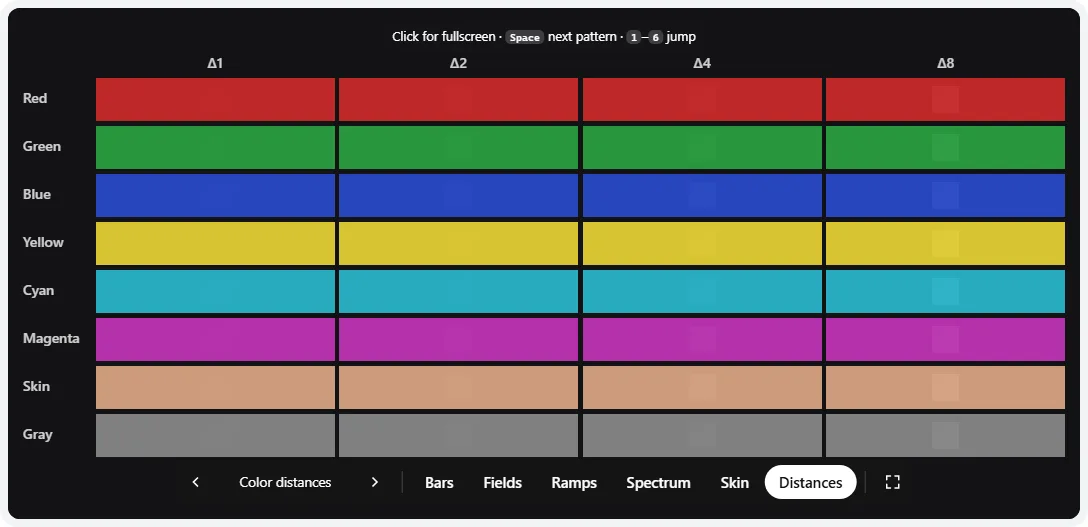
Don’t expect to see every Δ1 square — on many good screens they are invisible, especially in bright colors. What matters is consistency: if one row is much worse than the others, that color is being clipped (often a saturated red, green or yellow on a monitor in a “vivid” mode) or crushed (often the dark rows when brightness is too low).
Common color problems and how to fix them
Washed-out colors and gray blacks
On a PC connected over HDMI, the most common cause is an RGB range mismatch: the graphics card sends “limited” range (16–235) but the monitor expects “full” range (0–255). Black becomes dark gray and every color looks flat. Fix it in the graphics driver:
- NVIDIA: NVIDIA Control Panel → Display → Change resolution → Use NVIDIA color settings → Output dynamic range: Full.
- AMD: AMD Software → Settings → Display → Pixel Format: RGB 4:4:4 Pixel Format PC Standard (Full RGB).
- Intel: Intel Graphics Command Center → Display → Quantization range: Full.
Also check that Windows HDR is off unless you are watching HDR content: with HDR on, ordinary SDR content can look dim and desaturated. The HDR test shows whether HDR is active.
Oversaturated or “neon” colors
Wide-gamut monitors, many laptops and OLED phones in “vivid” mode stretch normal sRGB colors to their more saturated primaries. Reds look orange-red, skin looks sunburned, and the middle of the ramps clips early. Choose the monitor’s sRGB picture mode, turn on Automatically manage color for apps in Windows 11 (Settings → System → Display, on supported hardware), or pick the “Natural” screen mode on a phone. On Samsung Galaxy phones it’s Settings → Display → Screen mode; on Pixel phones, Settings → Display → Colors.
A yellow, blue, green or pink tint
- Night modes: Windows Night Light (Settings → System → Display), macOS Night Shift (System Settings → Displays), iPhone/iPad Night Shift and True Tone (Settings → Display & Brightness), and monitor “low blue light” or “eye saver” modes all warm the image on purpose.
- Color temperature: in the monitor menu, choose 6500K, “Normal” or “sRGB”. “Warm” and “Cool” presets shift the white point.
- Cable or port: a strong pink, green or purple cast that flickers or changes when you move the cable means a damaged cable, a loose connector or a bad adapter. Swap the cable before blaming the screen.
- Colored text fringes: if thin colored text looks smeared, the computer may be sending YCbCr 4:2:2 or 4:2:0 instead of RGB. Choose RGB or YCbCr 4:4:4 in the driver settings.
Bands in the ramps or spectrum
A few faint steps in the darkest part of a ramp are normal on 8-bit and 6-bit panels. Strong, evenly spaced bands usually mean the image is being processed: a monitor’s dynamic contrast, a TV’s picture enhancement, a non-default gamma curve, or an ICC profile with a steep correction. See the color banding test for a closer look.
When it’s a defect, not a setting
Most color complaints are settings. It is worth a return or warranty claim when, with all the fixes above applied and a known-good cable:
- one primary is clearly missing or much weaker in every pattern (yellow looks green, white looks cyan),
- a full-color field shows a large, obvious tinted patch or a line, especially one that changes as the screen warms up,
- the tint differs strongly between the left and right side of the same screen — check with the gray uniformity test,
- colors flicker or shift randomly while nothing on screen changes.
A slight warm or cool cast, or a small difference between two monitors side by side, is normal panel-to-panel variation. Matching two screens precisely needs a colorimeter; for a by-eye check against reference colors, try the color accuracy test.
Frequently asked questions
How do I test the colors on my screen?
Open this page, press F for fullscreen and step through the patterns with Space. Check that the bars look clean and evenly saturated, that white looks neutral rather than blue or yellow, that the ramps run smoothly from black through the color to white, and that you can see the small squares in the color distance grid. Anything that looks wrong points to a specific setting, explained above.
Why do the colors on my monitor look washed out?
The most common cause on a PC is an RGB range mismatch over HDMI: the computer sends limited range (16–235) and the monitor expects full range (0–255), so black turns gray and colors look flat. Set the output to Full RGB in the NVIDIA, AMD or Intel control panel. Other causes are Windows HDR being on for SDR content, a low contrast or high brightness setting, or simply viewing an IPS or VA screen from an angle.
Why are my monitor’s colors oversaturated?
Many newer monitors have a wide color gamut (DCI-P3 or close to it). In their native mode they stretch ordinary sRGB colors to the panel’s more saturated primaries, so skin looks sunburned and grass looks neon. Switch the monitor to its sRGB mode, or on Windows 11 turn on Automatically manage color for apps. The color gamut test explains this in detail.
Why does my screen have a yellow or blue tint?
Usually a setting, not a fault: Night Light (Windows), Night Shift or True Tone (Mac, iPhone, iPad), Eye Comfort or a “Warm” color temperature preset. Turn those off and set the monitor’s color temperature to 6500K (often labelled “Normal” or “sRGB”). A strong pink, green or purple cast that changes when you wiggle the cable points to a bad cable or port instead.
What are SMPTE color bars for?
They are a broadcast reference pattern for setting up TVs and checking a video signal path. The seven bars are 75% intensity white, yellow, cyan, green, magenta, red and blue; the bottom row adds a PLUGE strip for black level. On a computer they are a quick way to check that every primary and secondary color is present, clean and correctly saturated.
Can an online color test calibrate my monitor?
No. It shows you visible problems and helps you choose the right settings, but true calibration needs a colorimeter that measures the light coming off the screen and builds a profile. For setting brightness, contrast, gamma and white balance by eye, use the monitor calibration guide; to check accuracy by eye, use the color accuracy test.
Is this the same as a dead pixel test?
No. The dead pixel test uses solid colors to find individual broken pixels. This test checks how your screen reproduces color as a whole: saturation, tint, smooth transitions between shades, and whether nearly identical colors stay distinguishable.
Last updated . Runs entirely in your browser — nothing is uploaded.