How to use the white screen
- Go fullscreen. Click the white or press F. The controls and cursor fade out after two seconds; move the mouse or tap to bring them back. While fullscreen, the page asks the browser to keep the display from going to sleep.
- Set the brightness. Drag Brightness or press ↑ ↓ (Shift for 1% steps). In fullscreen, press A or tap Adjust to open the sliders.
- Set the warmth. 6500 K is the neutral white your screen normally shows. Lower numbers remove blue and some green, for a warmer, more lamp-like light. Presets 1–5 jump to common values.
- Optional extras. Clock (C) and Timer (T) show the time or a countdown in quiet gray. Touch lock ignores taps and keys while you wipe the screen or trace on it.
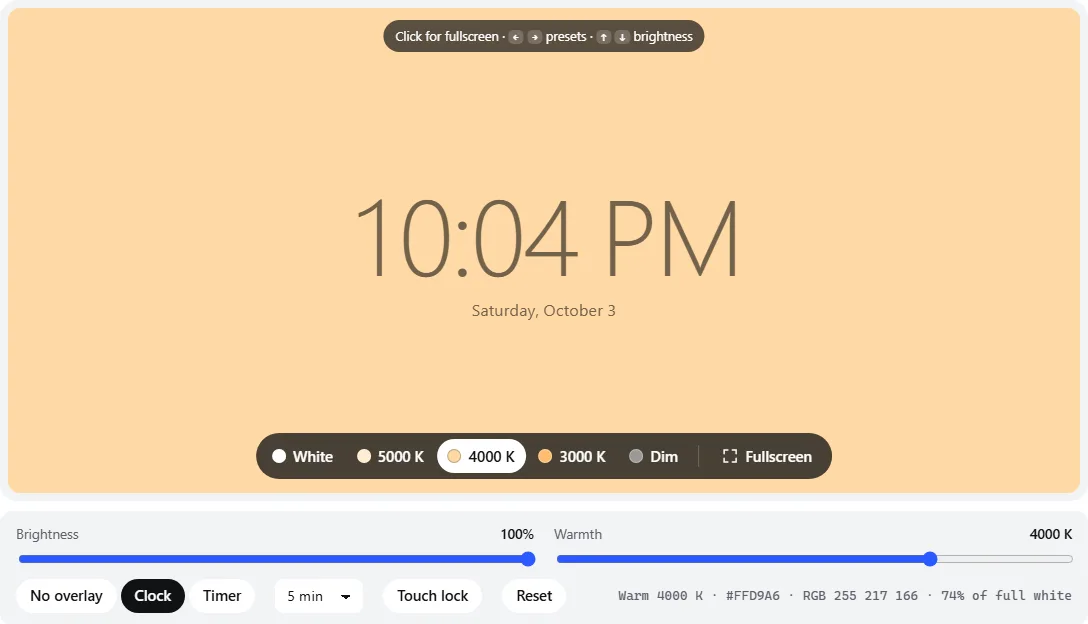
- 1Presets — neutral white, 5000 K, 4000 K, 3000 K and dimmed (keys 1–5, or ← →).
- 2Fullscreen (F) — or just click the color.
- 3Brightness in perceptual steps (↑ ↓).
- 4Warmth from 7500 K (cool) to 2700 K (warm); 6500 K is your screen’s normal white.
- 5Optional clock (C) or countdown timer (T), drawn in a quiet tone of the background.
Your last brightness and warmth are remembered on this device, so the page opens the way you left it. Reset goes back to plain white.
Use it as a light for video calls
A bright white screen in front of you works like a large, soft key light. It is most useful in the evening, when the room is lit by one ceiling lamp and your webcam is struggling. Set it up like this:
- Use a second screen if you have one. A tablet, an old laptop or a second monitor showing this page, placed just above or beside your webcam, lights your face without hiding the call. On a single monitor, make the browser window wide and tall and put the call window in a corner of the screen — the white area still lights you.
- Put the light in front, slightly above eye level. Light from below looks unflattering; light from behind turns you into a silhouette. Off to one side by 30–45° gives more shape to your face.
- Turn the display itself up. Set the screen to maximum brightness in your system settings and keep this page at 100%. Then use the slider to back off if your forehead looks shiny or washed out.
- Match the warmth to the room. Under typical warm indoor bulbs, 3000–4000 K blends in; next to a daylit window, 5000 K or neutral. Mixed color temperatures make one side of your face orange and the other blue.
- Wear glasses? Raise the light source higher or move it further to the side until its reflection leaves your lenses.
Distance matters more than anything: the light on your face falls off quickly as you move away, so a smaller screen close to you beats a large one across the desk.
Other things a white screen is good for
Tracing and light box
Lay a tablet flat, open this page at full brightness and turn on Touch lock so your hand doesn’t trigger anything. Thin paper such as standard printer or tracing paper works; thick card and watercolor paper usually block too much light. Tape the original and the paper together so they don’t shift, and use a light touch — pressing hard through paper can scratch a screen or leave pressure marks on a laptop LCD.
Spotting dust and dead pixels
White is the background where dark specks stand out: dust under a screen protector, debris inside the panel, and dead pixels (a pixel that never lights). If you find a dot, run the full dead pixel test, which cycles through all the colors and lets you mark the exact position. For bright stuck pixels, use the black screen instead.
Checking for tint and uneven brightness
A full white field shows a yellowish or bluish cast toward one side, darker corners, or a pink/green tint, all of which are easier to judge on white than on a busy desktop. For a proper uniformity check use darker grays — the gray uniformity test reveals clouding and banding that white hides.
Makeup and close-up work
A white screen is a soft, even light source for a mirror or close work. Keep in mind that a screen builds white from narrow red, green and blue light, not from a continuous spectrum like daylight or a high-quality bulb, so some foundations and skin tones look a little different under it. Check the final result in the light you’ll be seen in.
How the brightness and warmth controls work
Screens don’t respond to numbers in a straight line. The brightness slider here works in perceptual steps: each step looks like an equal change, and the color stays exactly neutral because the math happens in linear light. That is why 50% doesn’t mean half the light:
| Slider | Color sent | Light output (share of full white) |
|---|---|---|
| 100% | #FFFFFF | 100% |
| 75% | #BFBFBF | about 52% |
| 50% | #808080 | about 22% |
| 25% | #404040 | about 5% |
The readout under the screen shows the exact color and its share of full white as you drag. For the smallest possible light output, turn the display’s own brightness down too — the slider can only lower the signal, not the backlight.
Warmth follows the color of a glowing object as it heats up: 2700 K is the orange of a traditional incandescent bulb, 4000 K a neutral-warm LED, 5000 K is close to midday light. The page can only take light away from your screen’s white, so warmer settings are slightly dimmer, and anything warmer than about 3000 K looks clearly orange. If you want the whole computer warmer in the evening, use Night Light (Windows: Settings → System → Display) or Night Shift (macOS: System Settings → Displays) instead; they stack with this slider.
Cleaning your screen
Switching the display off is the safest way to clean it, but a full-screen color makes streaks easier to see as you go. Use white to spot dust and black for smudges and fingerprints. Touch lock keeps a touchscreen from registering your cloth. Wipe with a dry or slightly damp microfiber cloth, never spray liquid directly on the screen, and avoid paper towels and alcohol-based cleaners on matte or coated screens unless the manufacturer allows them.
Want a different shade? The gray screen has fixed gray levels for testing, and the any color screen fills the display with any hex or RGB color.
Frequently asked questions
How do I make my whole screen white?
Open this page and click the white area or press F. The white fills the entire display, including the taskbar or menu bar area. Press Esc or click Exit to leave. On a phone, tap the white area.
How can I make the white screen brighter?
At 100% this page already sends the brightest white your screen can show, so the rest is up to the display. Turn up the brightness in your system settings or with the monitor’s buttons, and turn off battery saver, which often caps brightness on laptops and phones. A web page cannot push a display past its own maximum.
Is a white screen good enough as a light for Zoom or Teams calls?
In a dim or evening room, yes: a monitor at full brightness a forearm’s length from your face noticeably lifts shadows and makes webcams less grainy. It can’t compete with a bright window or ceiling light behind you. For the best result, use a second screen (an old tablet or laptop works) so your call window stays fully visible.
Why does the white look yellow or blue?
Something is tinting it: Night Light on Windows, Night Shift or True Tone on Apple devices, Eye Comfort or Blue light filter on Android, or the monitor’s own color temperature or “low blue light” preset. Also check the Warmth slider on this page — 6500 K is neutral. Compare against another device to see which one is off.
Can a white screen cause burn-in?
A uniform white field wears every pixel equally, so it does not leave a pattern. What can leave a mark on an OLED is anything that stays in one place for many hours, such as the clock overlay or a browser bar outside fullscreen. LCD monitors don’t get burn-in from either.
How do I get a fullscreen white screen on iPhone?
Safari on iPhone doesn’t let web pages hide its address bar, so a tap fills the browser window rather than the whole screen. For an edge-to-edge white, tap the Share button, choose Add to Home Screen, and open the page from that icon — it opens without Safari’s bars.
Last updated . Runs entirely in your browser — nothing is uploaded.