Photosensitivity warning: the fixer flashes rapidly changing colors. If you have photosensitive epilepsy or have ever had a seizure triggered by light, don’t use it. While it runs, look away or leave the room.
How to fix a stuck pixel
- Find the pixel first. Click the black area or press F to go fullscreen. A stuck pixel shows up as a bright colored dot on black. If you’re not sure what you have, run the dead pixel test first.
- Read the warning and press I understand — start. The box in the middle of the screen starts flashing random colors.
- Move the box over the pixel. Drag it with your mouse or finger and drag its bottom-right corner to resize it. For precise placement, click the box and use the arrow keys (1 pixel per press, 10 with Shift). Make the box a little bigger than you think you need.
- Let it run for 10–30 minutes. The timer counts running time, and the fixer stops on its own after the time you choose under the test. Look away from the screen; the display stays awake in fullscreen.
- Check the pixel. Press Space to pause and look at it on black, then on white with the dead pixel test. If it is still stuck, run another session.
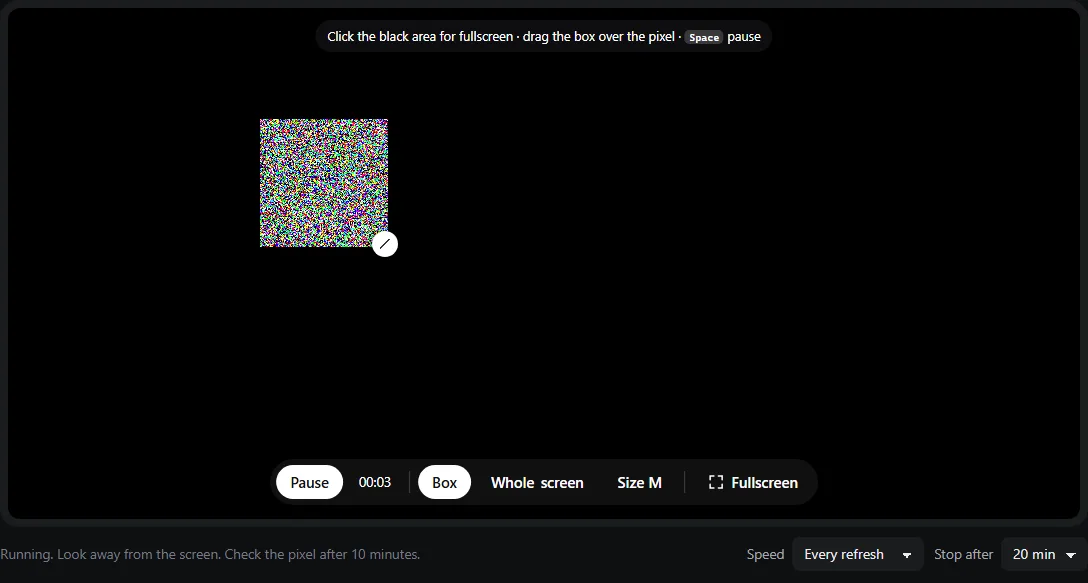
- 1The fixer box. Drag it over the stuck pixel; every physical pixel inside gets a new random color on every refresh.
- 2Drag the corner handle to resize it, or press + / −.
- 3Pause / start (Space) and the running time.
- 4Switch between the box and the whole screen.
- 5Flash speed and the automatic stop time.
If you can’t find the pixel inside the preview, use Whole screen (A), which flashes every pixel on the display. It works the same way; the box is just easier on the eyes and leaves the rest of the screen black so you can watch the pixel’s surroundings.
Stuck, dead or hot?
The fixer only has a chance with one of these. Each close-up shows a small patch of RGB subpixels with the faulty pixel in the middle.
Does it really work?
Honestly: sometimes. On an LCD, each subpixel is a tiny liquid-crystal shutter driven by a transistor. A pixel can get stuck when the shutter or its drive circuit gets stuck in one state. Rapidly forcing it through many different states can, in some cases, get it working again. When a pixel is stuck because the transistor itself has failed, nothing on screen can fix it.
- Best chance: a stuck (colored) pixel that appeared recently.
- Lower chance: a pixel that has been stuck for months, or a hot (white) pixel.
- No realistic chance: a dead (black) pixel, a line of pixels, or a block of pixels — those are panel or driver faults.
- OLED: a stuck pixel on an OLED is almost always a failed transistor in the pixel circuit, so the fixer rarely helps. It is harmless to try for a session.
Sometimes a stuck pixel recovers on its own after days or weeks of normal use, and sometimes a fixed pixel gets stuck again. That uncertainty is why the return window should come first.
If it doesn’t work
- Check your return window. Most stores take back a new display within a set period, which is far easier than a warranty claim.
- Check the manufacturer’s pixel policy. Many brands only replace a panel once it exceeds a set number of defective pixels; bright stuck pixels are usually treated more strictly than dark ones. Our dead pixel test explains the common ISO 13406-2 limits and gives you a report with exact pixel coordinates.
- The pressure method, as a last resort on an out-of-warranty screen: turn the display off, fold a soft microfiber cloth over a blunt, rounded tip such as a stylus cap, press gently on the exact spot, turn the display on while pressing, then release. Too much pressure creates new dead pixels or cracks the panel. Don’t use it on a screen you can still return, and don’t use anything sharp.
A ghost image rather than a single dot is a different problem: try the burn-in test. On an OLED, also look at near-black behavior with the OLED test.
Frequently asked questions
Does a stuck pixel fixer actually work?
Sometimes. Rapid color changes can revive a pixel that is stuck on one color, especially if it appeared recently. There is no reliable data on success rates, and many stuck pixels never respond. It costs nothing to try for 10–30 minutes, but don’t delay a return or warranty claim while you wait for it to work.
Can this fix a dead pixel?
Very unlikely. A dead pixel stays black on every color because its transistor or connection has failed, and no flashing pattern can repair that. The fixer is aimed at stuck pixels — ones that glow red, green, blue or another color. Use the dead pixel test to find out which kind you have.
How long should I run the stuck pixel fixer?
Start with 10 minutes, check the pixel, then try 20–30 minutes. Some people run several sessions. If nothing has changed after about an hour in total, further runs are unlikely to help.
Can flashing colors damage my screen?
No. Changing pixel colors quickly is what every screen does when it plays video. On OLED, a short session adds a tiny amount of even wear to the pixels under the box, which is negligible. Do take care of yourself though: the pattern flashes rapidly, so look away while it runs.
Does it work on phones and tablets?
Yes. Find the stuck pixel on a black screen, tap the test area for fullscreen, then drag the box over the pixel with your finger and resize it with the corner handle. The screen stays awake in fullscreen. On iPhone, Safari doesn’t support true fullscreen, so rotate to landscape or add the page to your home screen to cover the edges.
Is this better than a stuck pixel video on YouTube?
Usually. Video compression can’t reproduce random per-pixel noise — it blurs it into blocks — and videos play at 24–60 frames per second. This fixer draws a fresh random color on every physical pixel on every refresh of your screen, so each subpixel really does switch on and off as fast as the display allows.
Should I try the pressure method?
Only as a last resort on a display that is out of warranty. Pressing on the panel can create more dead pixels, damage the layers or crack the glass, and it may void your warranty. If the screen is new, use the return window instead.
Last updated . Runs entirely in your browser — nothing is uploaded.