How to run the response time test
- Use your monitor’s highest refresh rate and let it warm up for a few minutes — cold LCDs respond more slowly. The readout under the test shows the refresh rate and how many pixels the bars move per frame.
- Go fullscreen by clicking the test or pressing F.
- Follow the bars with your eyes. Each row moves a bar of one gray level across a background of another, so every row tests one pair of transitions in both directions: the bar’s front edge goes background → bar, its back edge goes bar → background.
- Compare the rows. On a fast panel, all six rows look alike: a little even blur on both edges. A row with a long smear behind the bar has a slow transition; a row with a bright or dark edge that isn’t in the other rows has overshoot.
- Switch to the blur ruler (Space) to put a number on the blur you see, then try the toggle chart to check whether pixels rise and fall at the same speed.
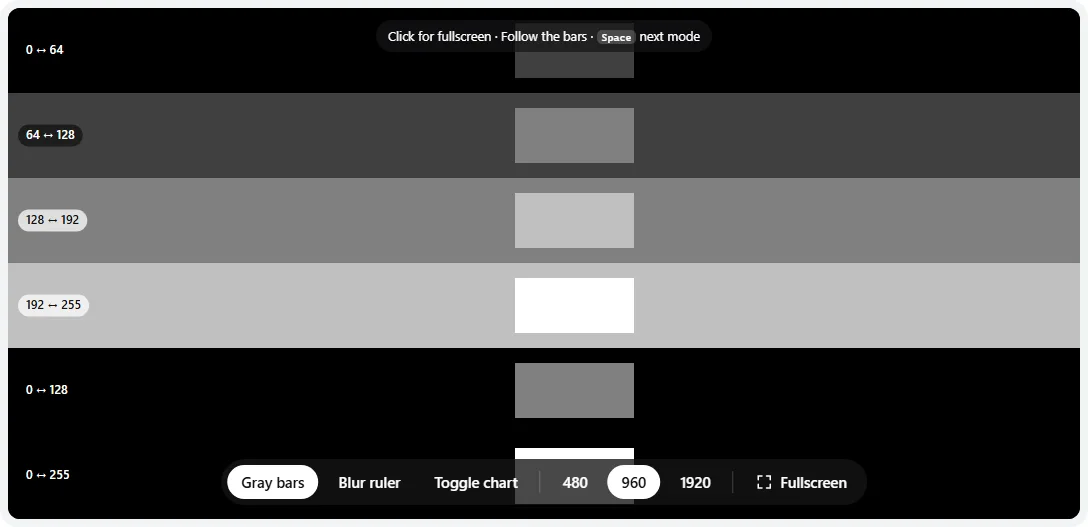
- 1Transition label. The top rows (0 ↔ 64, 64 ↔ 128) are where slow dark transitions and VA black smearing show up.
- 2Mode: gray bars, blur ruler, toggle chart.
- 3Speed in pixels per second. 960 px/s is the usual comparison speed.
Reading the gray bars
A pixel’s response time is how long it takes to change from one shade to another. When that takes longer than a frame, the bar drags its old color behind it. Overdrive speeds transitions up by briefly driving the pixel harder than needed; tuned well, the pixel lands on time, but too much makes it overshoot.
| What you see | Which rows | Meaning |
|---|---|---|
| Even, short blur on both edges, same in every row | All | Fast, well-tuned panel. The blur is normal sample-and-hold motion blur. |
| Dark smear behind the bar, longest in the darkest rows | 0 ↔ 64, 64 ↔ 128 | Slow dark transitions — the classic VA “black smearing”. |
| Light smear behind the bar in every row | All | Overdrive too low (or off). |
| A bright edge behind dark bars, or a dark edge behind bright ones | Usually 128 ↔ 192, 192 ↔ 255 | Overshoot (inverse ghosting) — overdrive too high. |
| A clean edge in some rows and a halo in others | Mixed | Normal for fixed overdrive: one setting can’t suit every transition. Pick the level that looks best overall. |
The full 0 ↔ 255 row usually looks best on every panel because black-to-white is the easiest transition to drive fast. That is also why advertised response times can look so good.
Measuring blur with the blur ruler
The blur ruler moves pairs of thin white bars with gaps from 2 to 40 pixels. When your eyes follow them, each bar is smeared by the screen’s motion blur. Pairs with a gap narrower than the blur melt into one blob; wider gaps stay visibly split.
- Switch to Blur ruler and go fullscreen.
- Follow the pairs with your eyes. Find the widest gap that still looks like a single bar.
- Select that row with ↑ ↓ (or tap it in fullscreen). The readout converts it to milliseconds: blur width in pixels ÷ speed.
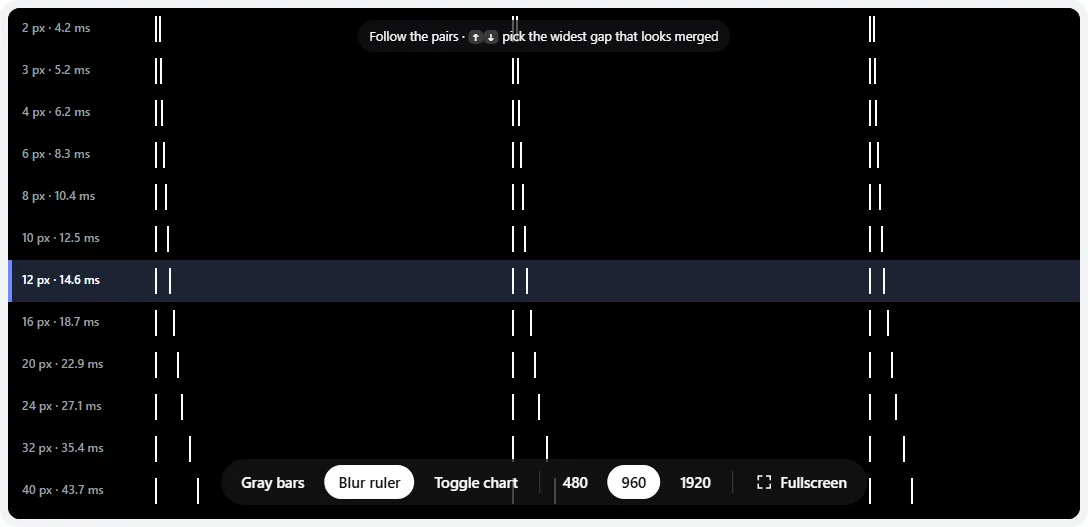
- 1Gap between the two bars, and the persistence in milliseconds it corresponds to at this speed.
- 2The selected row — move it to the widest gap that still looks merged.
On an ordinary 60–360 Hz screen, the result should land close to one frame time: about 16.7 ms at 60 Hz, 6.9 ms at 144 Hz, 4.2 ms at 240 Hz. That is MPRT, the blur your eyes see from sample-and-hold. A reading well above one frame means slow pixel transitions are adding smear; a reading well below it is only possible with backlight strobing or black frame insertion. Your eye-tracking isn’t perfect, so treat it as a ±1 row estimate.
The toggle chart: are rise and fall equally fast?
Many panels change faster in one direction than the other. The toggle chart shows it without any equipment. Each row has two patches built from the same two colors, which differ only in green:
- The left patch alternates between the two colors about 10 times a second.
- The right patch shows both colors at once as a one-pixel checkerboard, so it is the true average.
With equal rise and fall times, the left patch averages to the same color as the right one. If green rises more slowly than it falls, the left patch spends less time bright and looks pinker; if it falls more slowly, it looks greener. Step back from the screen so the checkerboard blends. The chart needs a whole-number display scaling (100% or 200%) for the checkerboard to be exact; the test warns you if it isn’t.
Photosensitivity warning: the toggle chart flashes. It only starts after you confirm, and it stops when you switch modes.
GtG, MPRT and why “1 ms” is misleading
| Spec | What it measures | What to know |
|---|---|---|
| GtG (gray-to-gray) | Time for a pixel to change between two shades, traditionally from 10% to 90% of the way | Advertised figures are often the fastest single transition at the highest overdrive setting. Independent reviews report averages over many transitions. |
| MPRT (moving picture response time) | How long each frame stays visible, which sets motion blur | About one frame time on sample-and-hold displays. A “1 ms MPRT” figure needs backlight strobing turned on. |
| Overshoot | How far past the target the pixel goes | Rarely advertised, but it’s what causes bright or colored halos. |
To keep up with the refresh rate, transitions need to finish within one frame:
| Refresh rate | Frame time | Blur at 960 px/s |
|---|---|---|
| 60 Hz | 16.7 ms | 16 px |
| 120 Hz | 8.3 ms | 8 px |
| 144 Hz | 6.9 ms | 6.7 px |
| 240 Hz | 4.2 ms | 4 px |
| 360 Hz | 2.8 ms | 2.7 px |
OLED pixels switch in a fraction of a millisecond, so OLEDs show no trails and no overshoot here — just the clean sample-and-hold blur from the table. Fast IPS and TN panels come close at a good overdrive setting. VA panels are often fine for bright transitions but slow out of near-black.
Improving response time
- Overdrive: in the monitor’s on-screen menu, called Overdrive, OD, Response Time, Trace Free or AMA depending on brand. Middle settings are usually best. The ghosting test walks through tuning it.
- Refresh rate: many monitors apply their best overdrive tuning only at the maximum refresh rate. Confirm it with the refresh rate test.
- VRR (G-Sync / FreeSync): at lower frame rates, fixed overdrive can overshoot more. If you see halos in games but not here, lower overdrive one step.
- Backlight strobing (ULMB, ELMB, DyAc, MPRT mode) cuts motion blur sharply but reduces brightness and can add double images; use it at the refresh rate it was tuned for.
- TVs: Game mode keeps processing short; for blur, compare the TV’s motion setting (LG TruMotion, Samsung Picture Clarity, Sony Motionflow) on and off. Interpolation reduces blur on video but adds input lag — check that with the input lag test.
When slow response is a defect
Response time is a property of the panel model, so a slow result is rarely a fault in your unit. Consider returning it if your trails are clearly worse than reviews of the same model at the same overdrive setting, if one area of the screen smears more than the rest, or if the motion is simply not good enough for what you play — return windows are the easy way to switch to a faster panel type.
Frequently asked questions
Can a website measure my monitor’s response time in milliseconds?
Not directly. Response time is measured with a light sensor and an oscilloscope that record how fast a pixel’s brightness changes. A browser can’t see the light your screen emits. What this test can do is show you the result: trails behind the gray bars, a blur ruler that converts what you see into milliseconds of persistence, and a chart that reveals uneven rise and fall times.
What is a good response time for gaming?
Pixels should finish most transitions within one frame: under 16.7 ms at 60 Hz, 6.9 ms at 144 Hz and 4.2 ms at 240 Hz. Good IPS and TN gaming monitors manage that for most transitions at a sensible overdrive setting; VA panels often miss it on dark transitions; OLEDs are far under it.
Why does my “1 ms” monitor still show trails?
The 1 ms figure is usually the single fastest gray-to-gray transition, measured at the most aggressive overdrive setting — which often overshoots in normal use — or it is an MPRT figure that only applies with backlight strobing on. Average response across all transitions is typically several milliseconds, and dark transitions on VA panels can take much longer.
What is the difference between GtG and MPRT?
GtG (gray-to-gray) is how long a pixel takes to change from one shade to another. MPRT (moving picture response time) is how long each frame stays visible, which decides how blurry motion looks to your eye. On a normal sample-and-hold screen, MPRT is roughly one frame time (6.9 ms at 144 Hz) even if GtG were instant; only backlight strobing or black frame insertion makes it shorter.
Which overdrive setting gives the best response time?
Usually the middle setting. Go up one step at a time and watch the 0 ↔ 64 and 64 ↔ 128 rows: trails get shorter until a bright edge appears behind dark bars or a dark edge behind bright ones. Stop one step before that. The ghosting test has a step-by-step guide and the setting names for each brand.
Is VA black smearing a defect?
No. VA panels are slow at transitions that start from near-black, so dark objects leave a smoky trail, especially on dark backgrounds. Reviews of most VA monitors show it. It is only a concern if yours is clearly worse than other units of the same model.
What does the pink tint in the toggle chart mean?
The flashing patch alternates the green channel between two levels; the reference next to it shows the same two colors as a fine checkerboard. If green turns on more slowly than it turns off, the flashing patch spends less time bright and looks pinker than the reference. If it looks greener, the green channel turns off more slowly. Matching patches mean the rise and fall times are similar.
Last updated . Runs entirely in your browser — nothing is uploaded.