How to run the ghosting test
- Set your display to its highest refresh rate and close anything heavy in the background. The readout under the test shows the rate the browser is really running at — if it says 60 Hz on a 144 Hz monitor, fix that first with the refresh rate test.
- Go fullscreen. Click the test or press F. Sit at your normal distance.
- Follow one UFO with your eyes as it crosses the screen. Don’t stare at a fixed point — ghosting only shows up when your eyes track the motion, the way they do when you follow a target in a game or read scrolling text.
- Look at the edges. Behind the object (the left side) is where trails appear. In front of it, look for a bright fringe. Check the black-and-white blocks in the middle row: each has both a dark-to-bright and a bright-to-dark edge.
- Step through the backgrounds with Space (or tap in fullscreen). Different backgrounds stress different transitions: dark gray and teal show overshoot best, black shows dark smearing, white shows slow bright-to-dark changes.
- Try the speeds with 1 2 3. 960 px/s is the standard comparison speed used in reviews; 1920 px/s exaggerates everything.
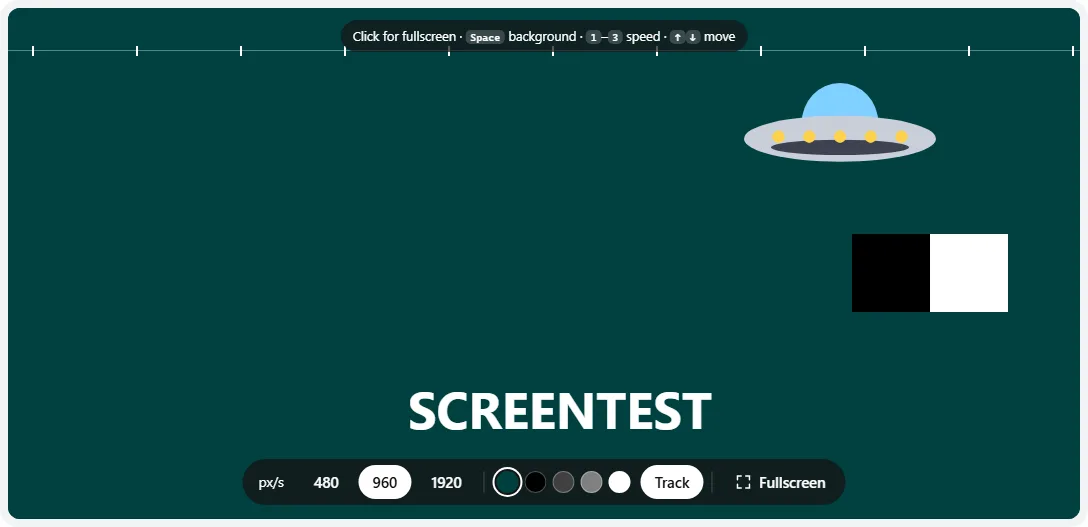
- 1Speed in pixels per second (keys 1–3); use the slider under the test for any other speed.
- 2Backgrounds: teal, black, dark gray, mid gray, white. Space or → steps through them; pick any other color under the test.
- 3Track adds a sync track for pursuit-camera photos (T).
- 4Three rows: the UFO, a white/black block pair, and text. Drag or use ↑ ↓ to move them up or down the screen.
How to read the result
Ghosting happens because LCD pixels need a few milliseconds to change from one shade to another. When that change takes longer than a frame, the old color lingers behind a moving object. Monitors push pixels harder to speed this up — called overdrive — and too much of it makes pixels overshoot their target, which creates a different artifact.
| What you see behind the object | What it is | What to do |
|---|---|---|
| Even blur on both edges, no trail | Normal sample-and-hold motion blur | Nothing — it only shrinks with a higher refresh rate. |
| Faded copy or smear of the object, same color as it | Ghosting (slow response) | Raise overdrive one step. |
| Bright, white, purple or green outline; the opposite brightness of the object | Inverse ghosting (overshoot) | Lower overdrive one step. |
| Dark smoky trail, mostly on black and dark gray | Black smearing (typical of VA panels) | Raise overdrive; it rarely disappears completely on VA. |
| A second, sharp copy of the object a short distance behind it | Strobe crosstalk (backlight strobing on) | Turn off ULMB / ELMB / DyAc / MPRT mode, or use it only at max refresh rate. |
Motion blur is not ghosting
Even a perfect, instant-response screen blurs a moving object when you track it, because each frame is held still while your eyes keep moving. The blur width equals the distance moved per frame. At 960 px/s, that is 16 px on a 60 Hz display, 6.7 px at 144 Hz and 4 px at 240 Hz. This test shows the exact px/frame for your screen under the stage. Blur that matches that width on both edges is normal; anything trailing beyond it is ghosting or overshoot.
How to tune overdrive
Overdrive is in the monitor’s own on-screen menu (the buttons or joystick on the monitor), not in Windows or macOS. The name depends on the brand:
| Brand | Setting name | Typical levels |
|---|---|---|
| ASUS / ROG | OD or Trace Free | Off, levels 1–5 (or 0–100) |
| Acer | Overdrive (OD) | Off, Normal, Extreme |
| BenQ | AMA | Off, High, Premium |
| Dell / Alienware | Response Time | Normal, Fast, Super Fast, Extreme |
| Gigabyte | Overdrive | Picture Quality, Balance, Speed |
| LG | Response Time | Off, Normal, Fast, Faster |
| MSI | Response Time | Normal, Fast, Fastest |
| Samsung | Response Time | Standard, Faster, Fastest |
- Pick the dark gray background at 960 px/s in fullscreen.
- Start at the lowest overdrive level and step up one level at a time. After each change, follow a UFO for a few passes.
- The trail gets shorter as you go up. At some point a bright or colored edge appears behind the UFO and behind the white block — that level is one too far.
- Repeat the check on mid gray and black. Choose the level that looks clean on all three, which is usually the middle setting.
With G-Sync, FreeSync or VRR: overdrive is usually tuned for the maximum refresh rate. When your game runs at a lower frame rate, the same setting can overshoot more. Monitors with “variable overdrive” (common with a G-Sync module) adjust for this; on others, pick a slightly lower level if you mostly play below the maximum refresh rate. A browser runs this test at your full refresh rate.
Other settings that affect trails
- Backlight strobing (NVIDIA ULMB, ASUS ELMB, BenQ DyAc, “MPRT” or “Motion Blur Reduction” modes) makes motion much sharper but can add a double image called crosstalk, often worse near the top or bottom of the screen. Drag the rows up and down to check.
- TVs: use Game mode (it turns off processing that adds lag) and compare with motion smoothing on and off (LG TruMotion, Samsung Picture Clarity / Auto Motion Plus, Sony Motionflow). Interpolation can add its own artifacts around moving objects.
- Refresh rate: a higher refresh rate shortens both motion blur and the time each frame has to finish its transition. Check it’s really active with the refresh rate test.
- Cold panels respond more slowly; LCDs ghost more in the first minutes after switching on in a cold room.
Panel types: what is normal
| Panel | Typical motion behavior |
|---|---|
| IPS | Short trails at a good overdrive setting; overshoot at the fastest settings. |
| VA | Dark smearing on dark backgrounds is common, even on fast models. Bright transitions are usually fine. |
| TN | Fast with little ghosting; overshoot at high overdrive levels. |
| OLED | No ghosting or overshoot; only clean sample-and-hold blur. |
For a closer look at individual gray transitions, use the response time test, which moves bars between specific shades and includes a blur ruler. On OLED screens, the OLED test covers near-black behavior.
When it’s worth returning the monitor
- Your unit trails clearly more than reviews of the same model show at the same overdrive setting and refresh rate.
- Trails appear in only one part of the screen — drag the rows top to bottom to compare.
- A faint copy of a static image stays visible after it disappears. That is image retention, not motion ghosting — check it with the burn-in test.
Otherwise ghosting is a property of the panel model. If it bothers you, a faster panel (a fast IPS or an OLED) is the fix, so use the return window rather than the warranty.
Taking a pursuit camera photo
Reviewers photograph motion by sliding a camera alongside the screen at exactly the UFO’s speed. Turn on Track (T) to show a row of tick marks that move with the objects. Set a shutter time that covers several frames (for example 1/30 s), pan the camera along a rail at the same speed as the UFOs, and check the ticks in the photo: when they are sharp, your panning matched and the photo shows what your eyes see; if they are smeared, the panning speed was off and the photo exaggerates the blur.
Frequently asked questions
What does monitor ghosting look like?
A moving object drags a faint, smeared copy of itself behind it, like a shadow or a comet tail. It is most visible when you follow a fast object with your eyes on a plain background — exactly what the UFO rows on this page are for. A trail that is brighter or a different color than the background (a white or purple halo) is inverse ghosting, caused by too much overdrive.
How do I fix ghosting on my monitor?
Go through these in order:
- Set the monitor to its highest refresh rate in Windows or macOS display settings (check it with our refresh rate test).
- In the monitor’s on-screen menu, raise the overdrive setting (called Overdrive, OD, Response Time, Trace Free or AMA) one step at a time, re-checking here after each change.
- Stop at the highest level that does not add a bright or colored halo — usually the middle setting.
- Turn off backlight strobing (ULMB, ELMB, DyAc, MPRT mode) if you see double images.
Is ghosting the same as motion blur?
No. Every LCD and OLED that holds each frame until the next one (“sample-and-hold”) blurs moving objects as your eyes track them; the blur width equals how far the object moves per frame. Ghosting is extra: a trail caused by pixels that can’t finish changing color in time. Higher refresh rates reduce motion blur; faster pixel response (overdrive) reduces ghosting.
Which overdrive setting should I use?
Usually the middle one (Normal, Fast, Balance or similar). The fastest setting often overshoots, leaving a bright or colored outline behind objects, while “Off” leaves long dark trails. Compare all settings here on the dark gray and mid gray backgrounds at 960 px/s and keep the one with the shortest trail and no halo. If you use G-Sync or FreeSync, also check at the frame rates you actually play at.
Do OLED monitors have ghosting?
Practically no. OLED pixels change in well under a millisecond, so there is no overdrive and no smeared trail. What you still see on an OLED is sample-and-hold motion blur, which is symmetrical and shrinks as the refresh rate goes up. Some OLED panels show slight smearing coming out of pure black, but far less than VA LCDs.
Why do VA monitors have black smearing?
VA panels are slow to change from very dark shades to brighter ones. When dark objects move over a slightly brighter background, the pixels behind them stay dark too long, leaving a dark, smoky trail. Overdrive helps a little, and some VA monitors smear less if you raise the brightness of near-black slightly (black level or shadow boost), but it is a trait of the panel type rather than a defect.
Is ghosting a reason to return a monitor?
Usually not on its own, because it is a characteristic of the panel model, not a fault in your unit. It is worth returning if your monitor ghosts much worse than reviews of the same model describe at the same overdrive setting, if the trail only appears in part of the screen, or if the motion clarity is simply not acceptable to you within the store’s return window.
Why does my phone screen show ghosting?
Many phone OLEDs smear slightly when dark content scrolls at low brightness, and some LCD phones and tablets ghost noticeably. Scrolling text on a black background in dark mode makes it most visible. It is typical of the panel and can’t be fixed in settings, though raising the brightness and using a higher refresh rate (Settings → Display → Motion smoothness or refresh rate on Android) helps.
Last updated . Runs entirely in your browser — nothing is uploaded.